
How to Connect Your Facebook Account to A4AutoPost
Managing Facebook content becomes much easier when you can create and schedule posts from the same place you use for your other social media accounts.
With A4AutoPost, you can connect your Facebook account, manage your social channels from one dashboard, and publish or schedule content without switching between different platforms.
In this guide, we’ll walk through how to connect your Facebook account to A4AutoPost, step by step.
Before You Start
Before connecting Facebook, make sure you have an A4AutoPost account.
If you already have an account, you can log in and continue with the Facebook connection process. If you’re new to A4AutoPost, you can create an account and start from the dashboard.
Step 1: Go to A4AutoPost
Visit the A4AutoPost website and click Login from the top navigation.
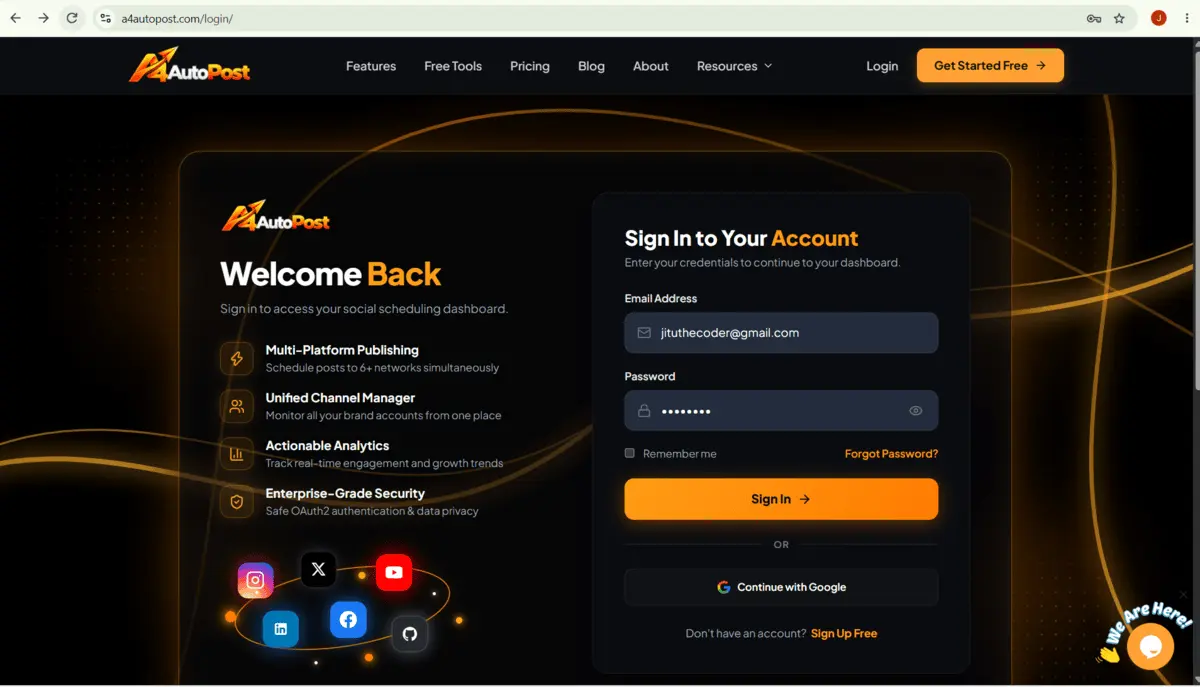
If you already have an A4AutoPost account, enter your email address and password and click Sign In.
Step 2: Create an A4AutoPost Account If You Don’t Have One
If you haven’t created an account yet, click Sign Up on the login page.
You’ll be asked to provide your basic account information, including:
- Full name
- Work email
- Password
- Confirm password
You also need to agree to the terms and conditions before creating your account.
Once you’ve entered the required information, click Create Account.
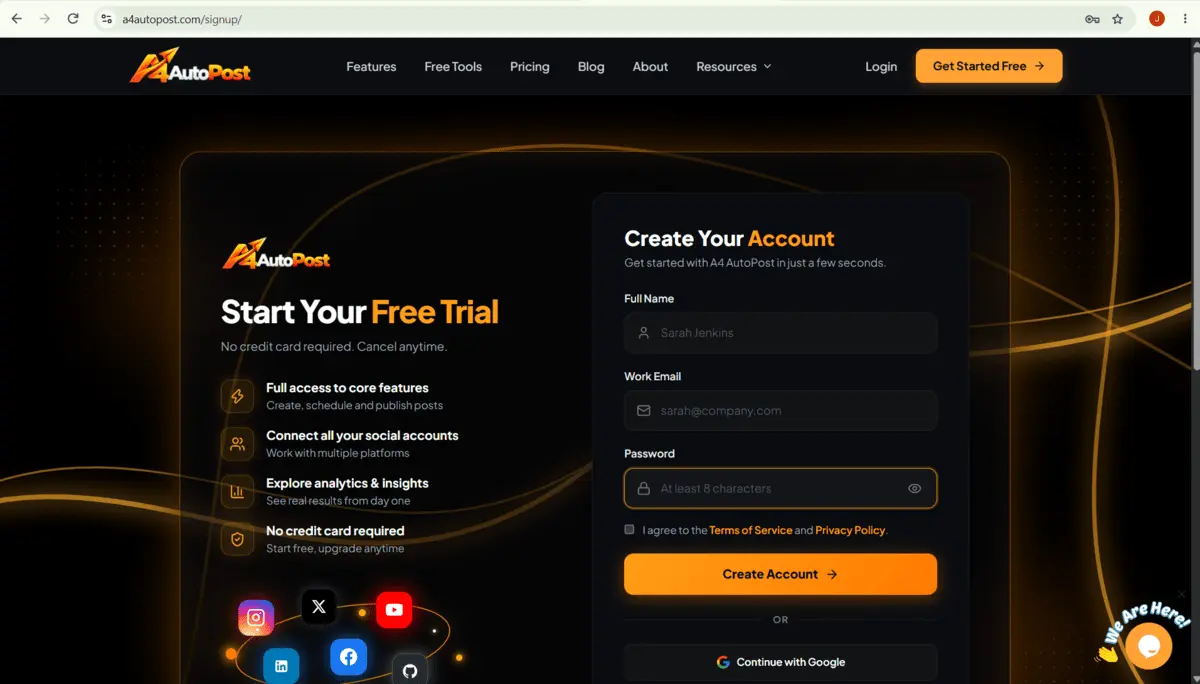
After your account is created, you’ll be taken to the A4AutoPost dashboard.
The dashboard is where you can manage your social accounts, create posts, and schedule your content.
Step 3: Open Social Accounts
Once you’re inside the A4AutoPost dashboard, look at the left-hand sidebar.
Click Social Accounts.
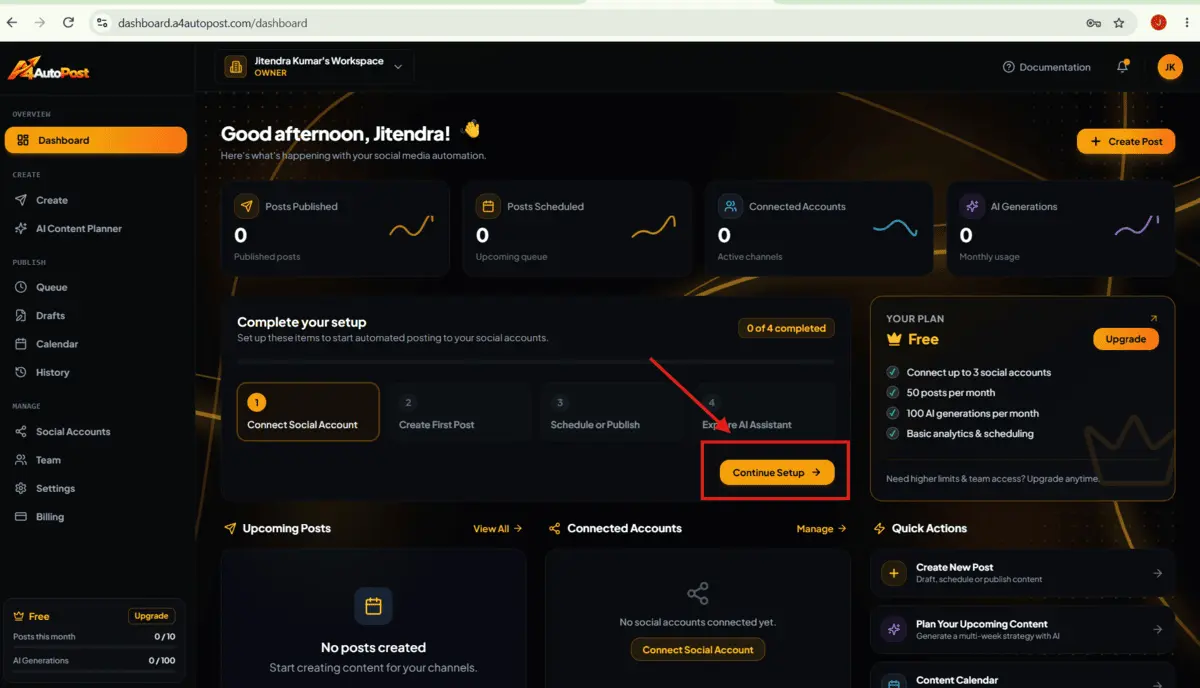
The Social Accounts section is where you can connect your social media profiles to A4AutoPost.
Depending on the platforms you want to use, you can connect accounts such as:
- YouTube
- X (Twitter)
Once your accounts are connected, A4AutoPost allows you to manage your publishing workflow from one place rather than handling each platform separately.
Step 4: Connect Your Facebook Account
On the Social Accounts page, find the Facebook section.
Click Connect Account under Facebook.
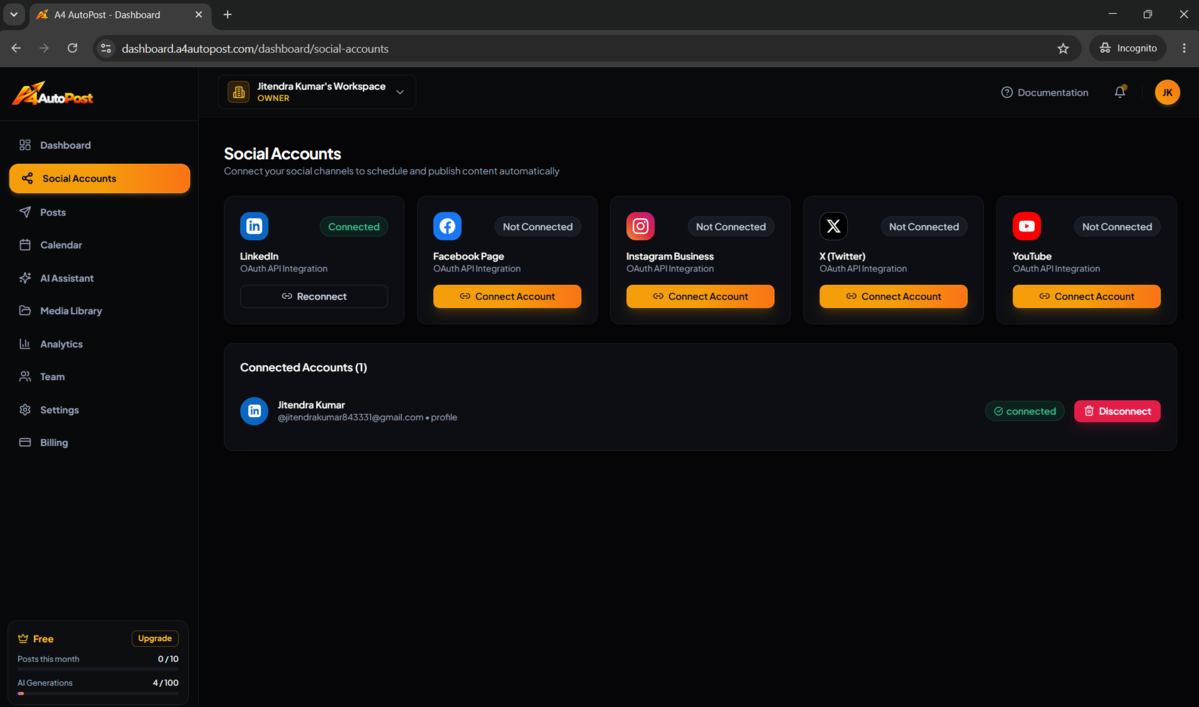
A4AutoPost will then start the Facebook connection process and redirect you to the Facebook authorization screen.
Step 5: Continue With Your Facebook Account
After clicking Connect Account, you’ll see a Facebook screen asking you to continue with the Facebook account you’re currently signed in to.
Review the account shown on the screen.
If it’s the Facebook account you want to connect with A4AutoPost, click Continue.
If the wrong Facebook account is displayed, use the option to log in with another account before continuing.
This step allows you to authorize the connection between your Facebook account and A4AutoPost.
Step 6: Confirm the Facebook Connection
After continuing through the Facebook authorization process, you’ll be returned to A4AutoPost.
You should see a confirmation message indicating that your Facebook account has been connected successfully.
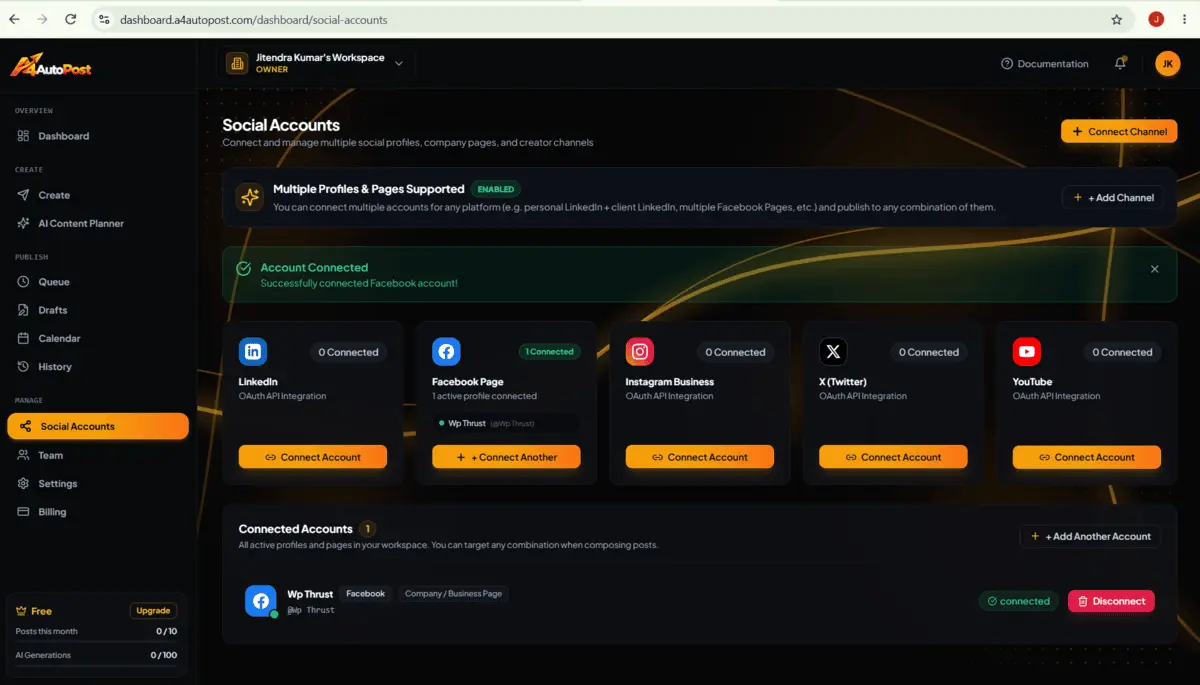
Your connected Facebook account will also appear in the Connected Accounts section of the Social Accounts page.
That’s it — your Facebook account is now connected to A4AutoPost.
What Can You Do After Connecting Facebook?
Once Facebook is connected, you can use A4AutoPost to create and publish content from the platform.
You can also connect additional social media accounts and manage them from the same Social Accounts section. The connection process for other supported platforms is similar, although the authorization steps may vary slightly between platforms.
This means you don’t necessarily need to create and manage every post separately on each social network.
How to Create a Facebook Post in A4AutoPost
Once your Facebook account is connected, you can start creating content.
From the A4AutoPost dashboard, click Post from the left-hand menu and then select Create New Post.
You’ll be taken to the post creation screen.
Step 1: Add Your Content
A4AutoPost gives you the option to add your own content or use its AI-powered content generation feature.
If you already have your content ready, you can enter your:
- Post title
- Post content or caption
If you want help creating the content, you can describe what you want to publish and use the available AI generation option.
Step 2: Add an Image or Video
If your post includes visual content, you can upload an image or video through the Media Attachments section.
Adding media can be useful when you’re preparing Facebook posts that include product images, promotional graphics, videos, or other visual content.
Step 3: Select Facebook as Your Target Channel
One useful part of A4AutoPost is that you can choose exactly where you want to publish your content.
For example, suppose you have connected five social accounts but only want to publish a particular post to Facebook and two other platforms.
You can select only those target channels instead of publishing the post to every connected account.
This gives you more control over your publishing workflow and lets you customize where each post goes.
Step 4: Publish or Schedule Your Facebook Post
Once your content, media, and target channel are ready, you can choose what you want to do with the post.
If you want to publish the content immediately, click Publish.
If you want the post to go live later, choose the scheduling option and select your preferred date and time.
With your Facebook account already connected, A4AutoPost can use the selected Facebook account as the destination for your post.
Why Connect Facebook to A4AutoPost?
If Facebook is one of the channels you regularly use for content marketing, connecting it to A4AutoPost can make your publishing workflow easier.
Instead of logging into multiple social platforms every time you want to publish something, you can manage your connected accounts from one dashboard.
You can also decide which connected channels should receive each individual post.
This is particularly useful when you’re managing content for multiple social platforms and don’t want every post to be published everywhere.
Frequently Asked Questions
Can I connect Facebook to A4AutoPost?
Yes. You can connect your Facebook account from the Social Accounts section inside your A4AutoPost dashboard.
Where do I connect my Facebook account?
Log in to A4AutoPost, open Social Accounts from the left sidebar, and click Connect Account under Facebook.
Can I connect other social media accounts to A4AutoPost?
Yes. The Social Accounts section also provides options to connect other supported platforms, including Instagram, LinkedIn, YouTube, and X (Twitter).
Can I choose which social accounts receive a post?
Yes. When creating a post, you can select the target channels where you want the content to be published. For example, if you have five accounts connected, you can choose only the three accounts you want to use for a particular post.
Can I schedule Facebook posts with A4AutoPost?
Yes. After creating your post and selecting Facebook as a target channel, you can either publish it immediately or schedule it for later.
Start Managing Your Facebook Content With A4AutoPost
Connecting Facebook to A4AutoPost takes just a few steps. Once the account is connected, you can create content, add images or videos, choose your target social channels, and either publish your post immediately or schedule it for later.